Ollama: Lokale LLMs einfach gemacht
Tools · 8 min
Ollama ist ein CLI-Tool für lokale LLMs. Installation in 5 Minuten, 200+ Modelle verfügbar, REST API auf Port 11434. Keine Cloud nötig, keine API-Kosten, DSGVO-konform. Für den Einstieg reicht eine GPU mit 6 GB VRAM.
Ollama macht lokale Large Language Models zugänglich. Keine Cloud, keine API-Kosten, keine Daten, die irgendwohin fließen. In 5 Minuten hast du deinen eigenen AI-Chat auf deiner Hardware laufen.
So nutzen wir es bei AI Engineering
Wir nutzen Ollama mit 3 Instanzen (RTX 3090, RTX 2060, CPU) mit automatischem 3-Level Fallback und OOM-Detection.
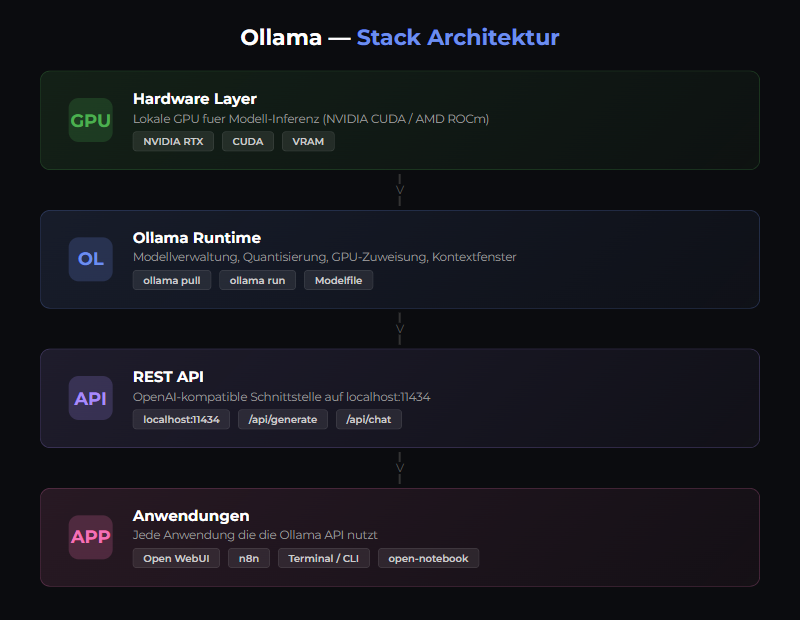
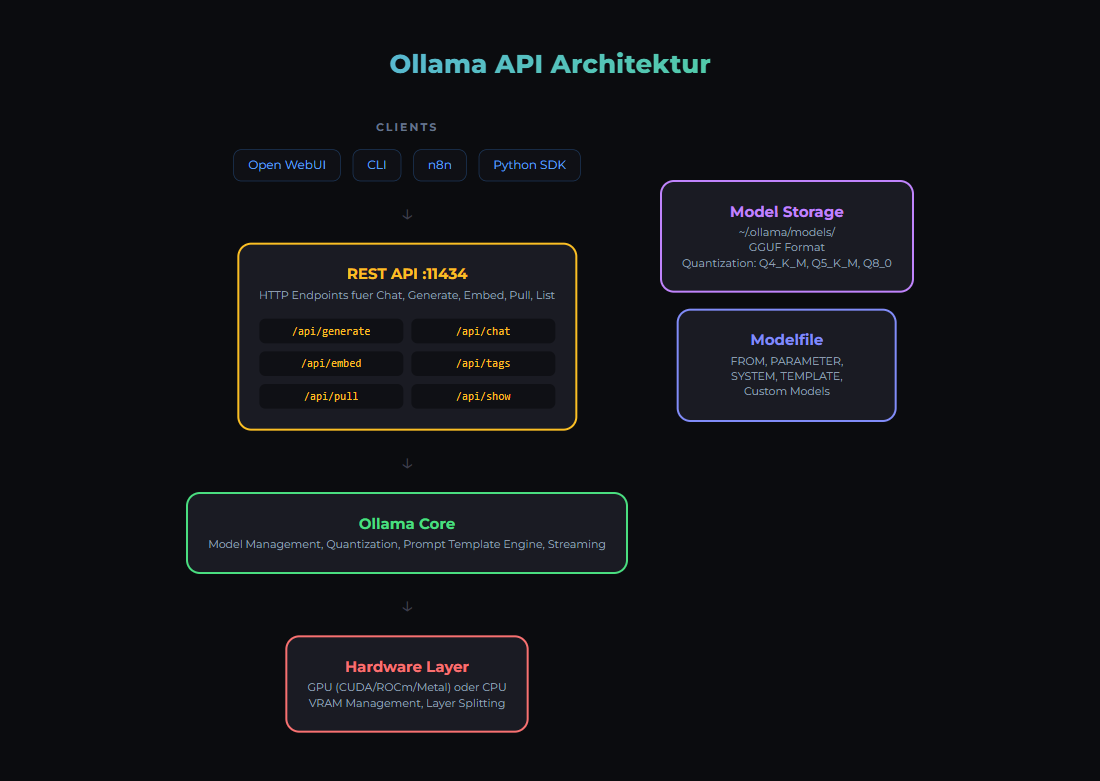
Was ist Ollama?
Ollama ist ein CLI-Tool, um LLMs lokal zu betreiben. Unterstützt 200+ Modelle (Llama, Mistral, Qwen, Gemma, etc.) und läuft auf macOS (mit Metal GPU-Beschleunigung), Linux und Windows (nativ oder via WSL2).
Unterstützte Modelle (Auswahl)
Llama 3.1 / 3.3
3.1 in 8B, 3.3 in 70B — Text, Code, Tool Calling
Mistral Small 3.2
24B — Schnell, multilingual, 128K Context
Qwen 2.5
0.5B bis 72B — Stark multilingual, Coding
Gemma 2
2B, 9B, 27B — Google, effizient
Phi-3.5
3.8B — Klein, aber schlau
mxbai-embed-large
335M — Embeddings, 1024 Dimensionen
Installation
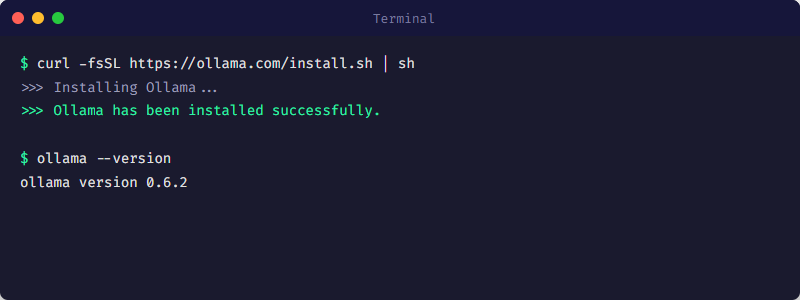
macOS
brew install ollamaLinux/WSL2
curl -fsSL https://ollama.com/install.sh | shDocker (unsere Empfehlung)
docker run -d \
  --name ollama \
  -v ollama_data:/root/.ollama \
  -p 11434:11434 \
  ollama/ollama:latest
Modelle herunterladen
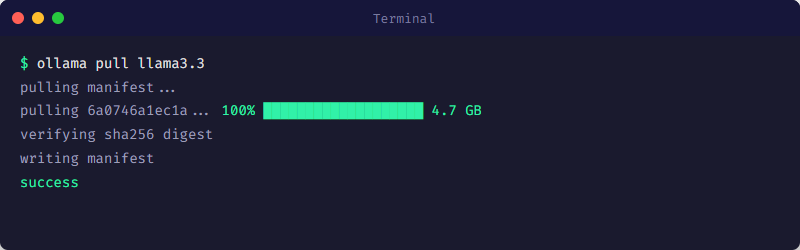
Das erste Model wird beim Start automatisch heruntergeladen. Du kannst auch explizit Modelle vorladen:
# Modell herunterladen
ollama pull llama3.2

# Verfügbare Modelle anzeigen
ollama list

# Modell-Info anzeigen
ollama show llama3.2
Empfohlene Starter-Modelle
| Modell | Größe | VRAM | Use Case |
|---|---|---|---|
| gemma2:2b | 1.6 GB | ~4 GB | Schnell, Einsteiger |
| llama3.1:8b | 4.7 GB | ~6 GB | Allrounder, Tool Calling |
| qwen2.5:14b | 8.9 GB | ~12 GB | Coding, multilingual |
| mistral-small3.2:24b | 14 GB | ~16 GB | Chat, Reasoning, 128K Context |
| mxbai-embed-large | 0.7 GB | ~2 GB | Embeddings (RAG) |
Ollama nutzen
Interaktiver Chat
ollama run llama3.2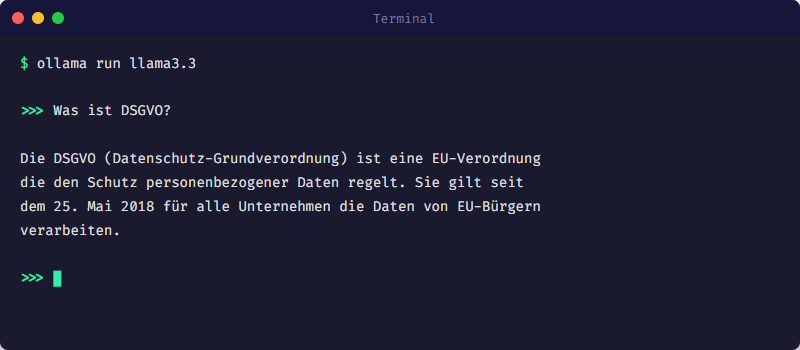
REST API
Ollama bietet eine REST API auf Port 11434:
# Chat
curl -X POST http://localhost:11434/api/chat \
  -d '{
    "model": "llama3.2",
    "messages": [
      { "role": "user", "content": "Hallo!" }
    ]
  }'

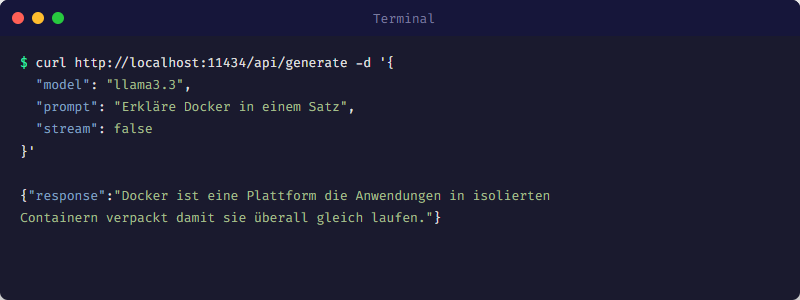
# Generate (einzelne Antwort)
curl -X POST http://localhost:11434/api/generate \
  -d '{
    "model": "llama3.2",
    "prompt": "Was ist Docker?"
  }'
GPU-Konfiguration
Ollama nutzt automatisch verfügbare GPUs. Für Docker muss die GPU durchgeschleift werden:
# NVIDIA GPU
docker run -d --gpus all \
  --name ollama \
  -v ollama_data:/root/.ollama \
  -p 11434:11434 \
  ollama/ollama:latest

# Oder mit docker-compose.yml
services:
  ollama:
    image: ollama/ollama:latest
    volumes:
      - ollama_data:/root/.ollama
    ports:
      - "11434:11434"
    deploy:
      resources:
        reservations:
          devices:
            - capabilities: [gpu]
Unser Docker Swarm Setup
In unserem 3-Node Swarm läuft Ollama auf der GPU-Node (docker-swarm3):
services:
  ollama:
    image: ollama/ollama:latest
    volumes:
      - ollama_data:/root/.ollama
    ports:
      - "11434:11434"
    deploy:
      resources:
        reservations:
          devices:
            - capabilities: [gpu]
      placement:
        constraints:
          - node.hostname == docker-swarm3
    networks:
      - ai-network
Web Interface: Open WebUI
Für ein ChatGPT-ähnliches Interface nutzen wir Open WebUI:
services:
  open-webui:
    image: open-webui/open-webui:main
    ports:
      - "3000:8080"
    environment:
      - OLLAMA_BASE_URL=http://ollama:11434
    volumes:
      - open-webui_data:/app/backend/data
    depends_on:
      - ollama
    networks:
- ai-networkFür Modelle bis 8B reicht eine GPU mit 6-8 GB VRAM (z.B. RTX 3060). Für 14B-24B Modelle brauchst du mindestens 12-16 GB (RTX 3080/3090). CPU-only geht auch, ist aber deutlich langsamer.
Nächste Schritte
- • RAG aufsetzen: RAG Complete Guide →
- • Modelle vergleichen: Mehrere Modelle parallel testen
- • Monitoring: Prometheus Metriken aktivieren
Quellen
- Ollama — Offizielle Website
- GitHub: ollama/ollama — Source Code und Dokumentation
- Ollama Model Library — Alle verfügbaren Modelle
- GitHub: Open WebUI — ChatGPT-aehnliches Interface für Ollama
- Hugging Face: Ollama mit GGUF-Modellen — GGUF-Modelle direkt von Hugging Face in Ollama nutzen
- Hugging Face Transformers Dokumentation — Offizielle Dokumentation der Transformers-Bibliothek
Verwandte Artikel
Model Selection Guide
Wähle das richtige AI-Modell für deinen Anwendungsfall — von Llama bis Mistral.
RAG Complete Guide
Retrieval Augmented Generation: Vector Databases, Embeddings, Hybrid Search.
Lokale AI vs. Cloud: Der TCO-Vergleich
Was kostet Self-Hosted AI wirklich? Hardware, Strom, Wartung vs. API-Kosten.
War dieser Artikel hilfreich?
Weiter im Lernpfad
Der Lernpfad bringt diese Artikel in eine Reihenfolge, und der Hub führt die Bausteine, die wir im eigenen Betrieb geprüft haben.
- Lokal und selbst gehostet
- Dokumentiert und prüfbar
- Aus eigenem Betrieb
- Made in Austria