Tools
AI Stack Setup in 30 Minutes
Ollama + Open WebUI + Docker: Your own ChatGPT clone, running locally on your hardware. No cloud, no API keys, no monthly costs.
In this tutorial, you set up a local AI stack in 30 minutes: Ollama as LLM backend, Open WebUI as chat interface, Docker as container runtime. At the end, you have a fully functional ChatGPT clone running on your own hardware.
Prerequisites
| What | Minimum | Recommended |
|---|---|---|
| GPU | 8 GB VRAM (7B models) | 24 GB VRAM / RTX 3090 (up to 34B models) |
| RAM | 16 GB | 32 GB |
| Storage | 50 GB free | 200 GB NVMe SSD |
| OS | Windows 10, macOS, Ubuntu 22.04+ | Ubuntu 24.04 LTS |
| Docker | Docker Desktop (Win/Mac) or Docker Engine (Linux) | Docker Engine + NVIDIA Container Toolkit |
Ollama also runs on CPU — just significantly slower. A 7B model on a modern CPU (i7/Ryzen 7) delivers about 5-10 tok/s. Fine for testing, but you need a GPU for productive use.
Step 1: Install Ollama (5 Minutes)
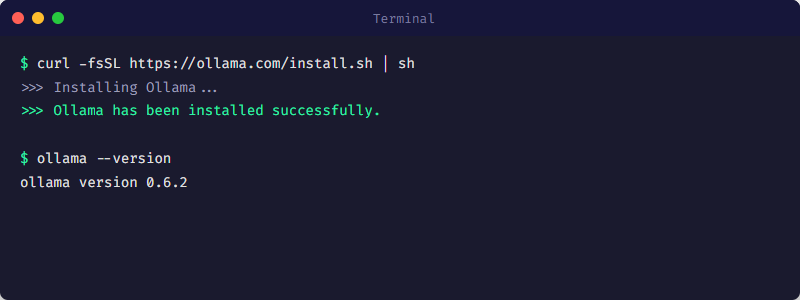
Ollama installation: One command on Linux, installer on Windows/Mac.
Linux / macOS
# One-command installation
curl -fsSL https://ollama.com/install.sh | sh

# Verify it works
ollama --version
Windows
# Download from https://ollama.com/download
# Run installer
# Ollama runs as background service
Step 2: Download Your First Model (5-10 Minutes)
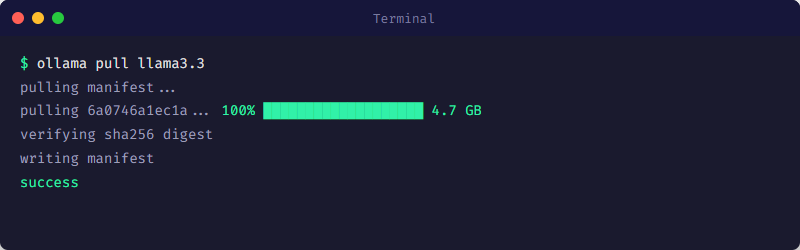
ollama pull downloads the model and stores it locally.
Download and test a model
# Recommended starter: Llama 3.1 (8B)
ollama pull llama3.1:8b

# Test it directly
ollama run llama3.1:8b

# Show installed models
ollama list| Model | Size | VRAM | Strength | Command |
|---|---|---|---|---|
| Llama 3.1 (8B) | 4.7 GB | ~5 GB | Fast all-rounder | ollama pull llama3.1:8b |
| Mistral Small 3.1 (24B) | 14 GB | ~16 GB | Strong German, beats GPT-4o Mini | ollama pull mistral-small3.1 |
| Qwen3 14B | 9 GB | ~10 GB | Good reasoning, 100+ languages | ollama pull qwen3:14b |
| DeepSeek R1 14B | 9 GB | ~10 GB | Strong chain-of-thought reasoning | ollama pull deepseek-r1:14b |
If the model does not fit in VRAM, Ollama falls back to CPU — 5-10x slower. Check: nvidia-smi (Linux/Windows) shows free VRAM. 24 GB GPU: max 34B models in Q4 quantization. 70B does NOT fit on 24 GB.
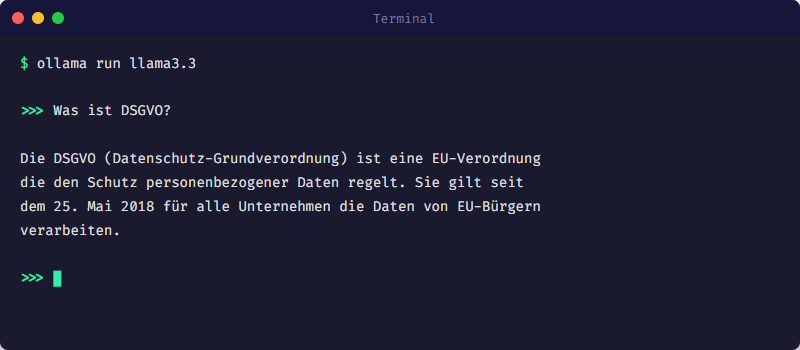
ollama run starts an interactive chat session in the terminal.
Step 3: Start Open WebUI (5 Minutes)
Terminal chat works for testing, but for daily use you want a web interface. Open WebUI looks like ChatGPT but runs locally and connects to your Ollama instance.
Docker Compose (recommended)
# Create docker-compose.yml
cat > docker-compose.yml << 'EOF'
services:
  open-webui:
    image: ghcr.io/open-webui/open-webui:main
    ports:
      - "3000:8080"
    environment:
      - OLLAMA_BASE_URL=http://host.docker.internal:11434
    volumes:
      - open-webui-data:/app/backend/data
    extra_hosts:
      - "host.docker.internal:host-gateway"
    restart: unless-stopped

volumes:
  open-webui-data:
EOF

# Start
docker compose up -d

# Open browser: http://localhost:3000On Linux the container needs extra_hosts: host.docker.internal:host-gateway to access the Ollama service on the host. On Windows and Mac, host.docker.internal is available automatically.
Open browser
Navigate to http://localhost:3000
Create account
The first user automatically becomes admin. Email and password are freely chosen — everything stays local.
Select model and start chatting
Open WebUI automatically detects all models installed in Ollama. Select the model at the top and start chatting.
Step 4: Verification (5 Minutes)
Check that everything is running correctly:
# Ollama API reachable?
curl http://localhost:11434/api/tags
# Expected: JSON with your models

# Open WebUI running?
curl -I http://localhost:3000
# Expected: HTTP 200

# GPU being used?
nvidia-smi
# "ollama" should appear under Processes

# Docker container status
docker compose ps
# open-webui should show "Up"Ollama provides a full REST API on port 11434. You can call it from any program, script, or workflow: curl http://localhost:11434/api/chat -d {"model":"llama3.1:8b","messages":[{"role":"user","content":"Hello"}]}. Perfect for integration with n8n, Python scripts, or custom tools.
Next Steps
| What | Why | Wiki Article |
|---|---|---|
| Learn Docker basics | Understand what happens under the hood | /en/tools/docker-grundlagen |
| Test multiple models | Different strengths for different tasks | /en/tools/model-selection |
| Build n8n workflows | Integrate LLM into automated processes | /en/tools/n8n-fuer-anfaenger |
| Set up monitoring | Monitor GPU utilization and container health | /en/tools/grafana-monitoring |
| Check security | Local does not automatically mean secure | /en/security/self-hosted-sicherheit |
This tutorial covers the quick start. For a comprehensive guide with hardware recommendations, network setup, backup strategy, and production hardening — our The Local AI Stack Playbook walks you through the entire process.
Das Wichtigste
- ✓30 minutes: Install Ollama (5 min), download model (10 min), start Open WebUI (5 min), verify (5 min).
- ✓Minimum: 8 GB VRAM for 7B models. Recommended: RTX 3090 (24 GB) for up to 34B models.
- ✓Open WebUI is a full-featured ChatGPT interface — local, no cloud, no monthly costs.
- ✓Ollama REST API (port 11434) enables integration into scripts, n8n workflows, and custom applications.
- ✓No GPU? Works on CPU too, just slower (~5-10 tok/s instead of 40-112 tok/s).
Sources
- Ollama — Local LLM Runtime
- Open WebUI — Self-hosted ChatGPT Interface
- Docker Compose Documentation — Container Orchestration
- LocalAIMaster: Best GPUs for AI — GPU Inference Benchmarks (tok/s)
Related articles
Ollama Tutorial
Run local LLMs with Ollama: install, pick models, use the API and integrate into a GDPR-compliant, 100% self-hosted AI stack.
Docker Basics: Containers, Compose & Swarm
Understand Docker for AI workloads: Containers vs VMs, Docker Compose for local stacks, Docker Swarm for multi-node deployments. Hands-on guide.
What is an LLM? Large Language Models Explained
What is a Large Language Model (LLM)? How do Transformers, Tokens, and Inference work? Model sizes, VRAM requirements, and practical tips.
Related articles
Ollama Tutorial
Run local LLMs with Ollama: install, pick models, use the API and integrate into a GDPR-compliant, 100% self-hosted AI stack.
Docker Basics: Containers, Compose & Swarm
Understand Docker for AI workloads: Containers vs VMs, Docker Compose for local stacks, Docker Swarm for multi-node deployments. Hands-on guide.
What is an LLM? Large Language Models Explained
What is a Large Language Model (LLM)? How do Transformers, Tokens, and Inference work? Model sizes, VRAM requirements, and practical tips.
Was this article helpful?
Continue the learning path
The learning path puts these articles in order, and the Hub carries the building blocks we have checked in our own operations.
- Local and self-hosted
- Documented and verifiable
- From our own operations
- Made in Austria